Vultr Docker VPS Setup: Production Guide
Set up a Vultr Docker VPS with deliberate sizing, SSH, firewall rules, Compose networking, persistent data, backups, and production checks.
Disclosure: WealthLab.life may earn a commission when you register through some links on this page, at no additional cost to you.
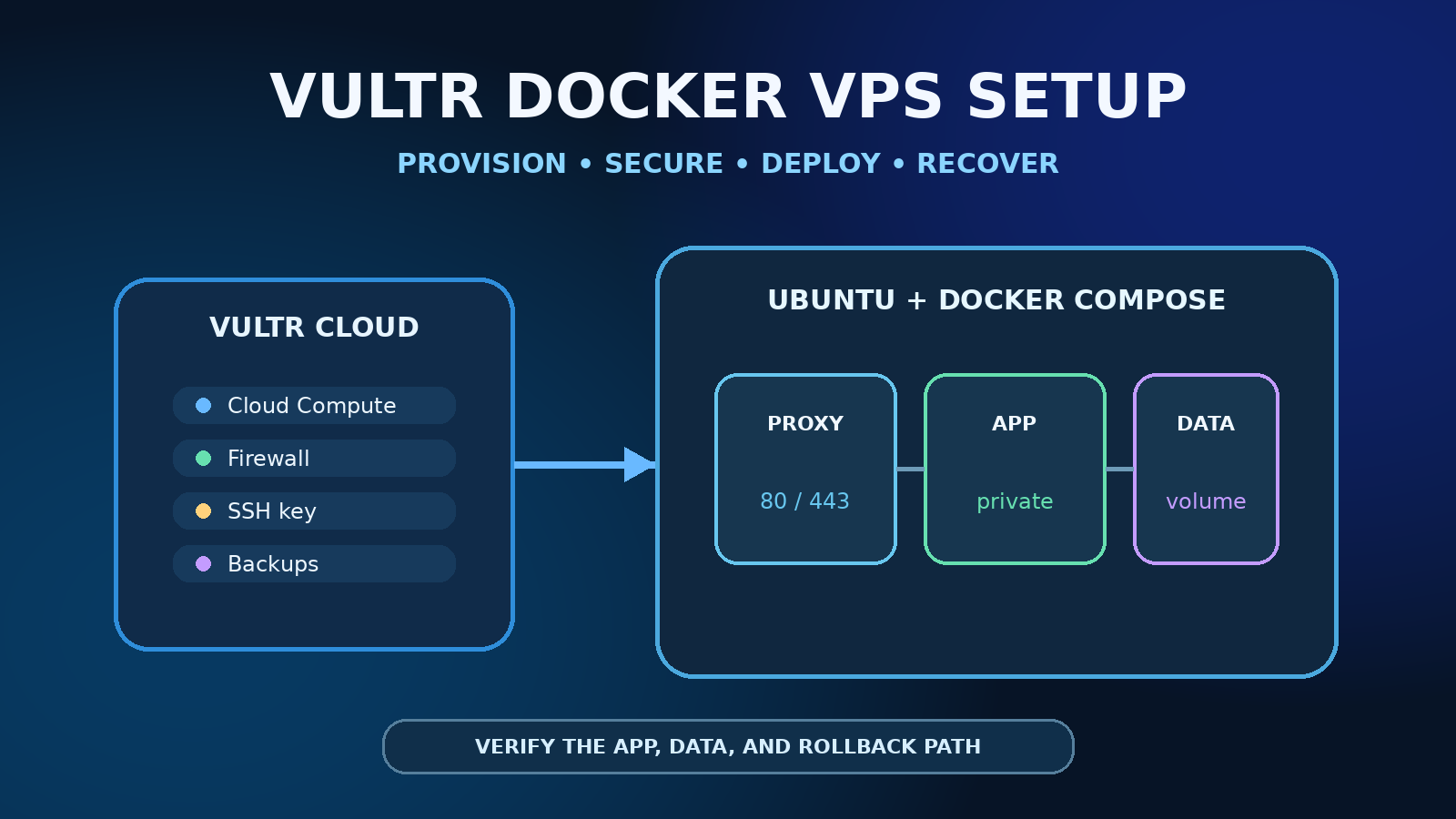
A production-minded Vultr Docker setup starts with a correctly sized Ubuntu Cloud Compute instance, an SSH key, an attached Vultr Firewall group, Docker Engine from Docker's official repository, private Compose networks, persistent data, and a recovery plan tested before launch. Only publish the reverse proxy ports your application needs. Keep databases, queues, admin panels, and the Docker API off the public internet.
This is a reusable deployment workflow for small web applications, APIs, automation tools, and self-hosted services. It is not a promise that one server size or Compose file fits every workload. Confirm current Vultr options, Docker requirements, application documentation, and final cost before provisioning.
Quick answer: the safe deployment path
- Estimate application, database, proxy, backup, and upgrade headroom.
- Create a Vultr Firewall group before the instance, allowing only HTTP, HTTPS, and restricted SSH.
- Deploy a supported Ubuntu LTS image with an SSH key and attach the firewall.
- Patch the host and establish a tested non-root administrative path.
- Install Docker Engine and the Compose plugin from Docker's documented apt repository.
- Deploy a reviewed Compose project with only the reverse proxy published publicly.
- Persist application data, protect secrets, and copy backups off the instance.
- Test HTTPS, private ports, health checks, restart behavior, and a real restore.
1. Size the Vultr instance for the whole stack
Start with the application's documented requirements, then add memory and storage for the operating system, Docker daemon, reverse proxy, database or queue, monitoring agent, image pulls, log growth, backups, and temporary upgrade work. An instance that survives at idle can still fail during a database migration, container image extraction, traffic burst, or backup compression.
- Small test stack: one lightweight application, little data, no uptime expectation, and disposable recovery.
- Small production stack: application plus reverse proxy and database, with room for upgrades, backups, and monitoring.
- Growing or busy stack: multiple services, heavier databases, background workers, build tasks, or sustained CPU demand.
Vultr describes standard Cloud Compute as shared-CPU virtual machines suited to bursty general-purpose workloads. Higher-frequency or higher-performance categories may suit CPU-sensitive workloads, but choose from measurements rather than labels. Check the selected location because plan and feature availability can vary. For a provider-neutral framework, use the Docker VPS sizing and provider guide.
2. Create the Vultr Firewall group first
In Products → Network → Firewall, create a clearly named group for the workload. Add narrowly scoped inbound rules:
- TCP 80: public only when needed for HTTP redirects or certificate validation.
- TCP 443: public HTTPS to the reverse proxy.
- TCP 22: only from a trusted administration address or private access network when practical.
Do not add database, Redis, application development, metrics, dashboard, or Docker daemon ports by default. Create corresponding IPv6 rules only if you intentionally enable IPv6 and can verify the full path. Vultr firewall rules filter incoming requests by protocol, port, and source, but the group protects nothing until it is attached to the intended instance.
Keep the provider web console available while tightening SSH. A cloud firewall is an outer layer, not a substitute for secure host configuration or safe Docker port publishing. The Docker VPS firewall guide explains how Vultr filtering, host policy, and Docker forwarding interact.
3. Provision the Cloud Compute instance
Open Products → Compute → Deploy. Choose the compute family and location based on the sizing decision and audience. Select a plain, currently supported Ubuntu LTS operating-system image rather than an unexplained third-party stack. Add your SSH public key, attach the firewall group, and give the host a descriptive label.
Vultr's current provisioning flow can enable a public IPv4 address, optional IPv6, VPC connectivity, automatic backups, limited-user login, and cloud-init. Enable only features you understand and record the final configuration. VPC connectivity can separate private service traffic, but it does not make a poorly published container port safe.
If Vultr fits your workload and operating model, open Vultr through WealthLab's referral link. Verify the exact vCPU, RAM, storage, transfer, region, backup option, taxes, and final recurring price in the portal before deploying. This guide did not benchmark Vultr hardware.
4. Establish secure administrative access
Connect using the initial account shown by Vultr. Before disabling any login method, create or verify a named sudo-capable administrator, copy the correct SSH key, and prove a second session works. Keep the first session open until the replacement path and provider console are confirmed.
ssh ADMIN_USER@SERVER_IP
sudo apt update
sudo apt upgrade -y
sudo reboot
After reconnecting, review SSH configuration rather than pasting a generic hardening file. Prefer key authentication, remove obsolete keys and accounts, restrict sources at the Vultr Firewall, and disable password or root login only after a tested alternative exists. A changed SSH port is not a security boundary by itself and must be updated at every filtering layer.
5. Install Docker from the official apt repository
Use Docker's current Ubuntu installation page to add Docker's signing key and apt repository, then install Docker Engine, the CLI, containerd, Buildx, and the Compose plugin. Docker explicitly positions its convenience script for development and testing rather than production. Review commands before running them as root; do not use an unverified curl | bash shortcut.
Verify the result:
sudo systemctl is-active docker
sudo docker version
docker compose version
sudo docker run --rm hello-world
Remove the test container automatically with --rm. Membership in the docker group grants powerful host-level access, so do not add routine users casually. Consider rootless Docker only after confirming that its networking and application limitations fit the stack.
6. Build a production-shaped Compose project
Create a dedicated directory such as /opt/myapp, keep Compose configuration under version control without secrets, and place runtime secrets in a protected ignored file or supported secret store. A small web stack can use this shape:
services:
  proxy:
    image: caddy:2
    restart: unless-stopped
    ports:
      - "80:80"
      - "443:443"
    networks: [frontend]

  app:
    image: example/app:PINNED_VERSION
    restart: unless-stopped
    env_file: app.env
    networks: [frontend, backend]
    depends_on: [db]

  db:
    image: postgres:PINNED_MAJOR
    restart: unless-stopped
    env_file: db.env
    volumes:
      - db-data:/var/lib/postgresql/data
    networks: [backend]

networks:
  frontend:
  backend:
    internal: true

volumes:
  db-data:
This is an architecture example, not a complete deployable application. Replace placeholder images and variables with the application's documented settings. Add health checks supported by the actual images, resource limits where appropriate, and a real reverse-proxy configuration. Do not copy a database credential into the Compose file.
Notice that only the proxy has ports. The application and database communicate through private Docker networks. Publishing a port without a host address normally binds it to all host addresses. Binding an administrative service to 127.0.0.1 is safer than binding everywhere, but a private network or authenticated access layer is often better.
Separate environment scope from startup readiness
Use separate protected app.env and db.env files rather than injecting one entire shared environment into both services. Each file should contain only variables that service requires. If the application needs a database credential, give it its intended application account, not an administrative credential merely because both services share a file. Environment files are not a secret vault; prefer supported file-based secrets where the application accepts them, exclude the files from version control and restrict host access.
depends_on: [db] controls startup order, not database readiness. Add an image-appropriate database health check and use the long-form condition: service_healthy dependency when readiness must gate application startup. The application still needs connection retries and reconnection handling for later database outages; an initial health check does not guarantee migrations, permissions or the complete application work.
For troubleshooting, use docker compose config --quiet to validate without printing resolved values, then inspect only the network fields you need with the tested allowlisted Compose network filter. Keep full configuration and logs private: both can contain credentials or personal data.
Documentation checked September 30, 2026: Docker's service environment guidance and startup-order guidance. This is a configuration safety correction, not a Vultr benchmark or a live database-failover test.
Why app.env does not fill every Compose variable
A service-level env_file: app.env supplies that service's container environment; it does not by itself supply values for ${...} substitutions elsewhere in the Compose model. For model interpolation, use the shell, the automatically loaded project .env, or an explicit CLI --env-file. A stale exported shell value can override the interpolation file. Treat these as two separate configuration layers when an image tag or database setting differs from what you expected.
To reproduce safely, create a new empty directory with these two synthetic files. Do not use a production checkout or real credentials. Save the following as compose.yaml:
services:
  demo:
    image: "busybox:${WL_DEMO_TAG:?Set WL_DEMO_TAG}"
    env_file: app.env
Save this non-secret value as app.env:
WL_DEMO_TAG=1.37
From that directory, with no project .env, use these Linux shell commands. All three parse configuration only; none starts a container or pulls an image:
# Expected: nonzero exit with Set WL_DEMO_TAG.
env -u WL_DEMO_TAG docker compose -f compose.yaml config --quiet

# Expected: succeeds; prints only busybox:1.37.
env -u WL_DEMO_TAG docker compose --env-file app.env -f compose.yaml config --images

# Expected: succeeds; prints only busybox:1.36.
WL_DEMO_TAG=1.36 docker compose --env-file app.env -f compose.yaml config --images
The final command changes the interpolated image tag, but the service environment value still comes from app.env and remains 1.37 in this fixture, because there is no service environment: override. Do not generalize this into a rule that shell values always replace every container variable. The :? required-value form also rejects an explicitly empty value; it checks presence, not whether a supplied credential is correct.
Observed October 3, 2026, with Docker Compose 5.5.1: an isolated synthetic rendering experiment rejected service-env-file-only interpolation, resolved the explicit CLI file to busybox:1.37, resolved the shell override to busybox:1.36 while retaining the service environment value, and rejected an empty required value. Temporary files were removed. This is Compose model-parsing evidence only: no containers were started, no images were pulled, and no Vultr deployment, database authentication or application behavior was tested.
For a real deployment, keep configuration diagnostics private, use config --quiet for routine validation, and inspect only the fields needed. Do not paste full rendered configuration or config --environment into support chats. Use the same intended --env-file selection consistently for validation and deployment, and check for stale shell overrides before recreating anything.
Primary documentation checked October 3, 2026: Docker's Compose interpolation rules and service environment configuration. This troubleshooting example adds no hosting purchase requirement.
7. Understand the firewall caveat before launch
Docker creates packet-filtering and NAT rules for bridge networking. Docker's documentation warns that traffic to published container ports can bypass the path UFW users expect because NAT diverts packets before the relevant INPUT and OUTPUT rules. A restrictive-looking UFW status is therefore not proof that a Compose port is private.
Use the Vultr Firewall as an outer control, publish as few ports as possible, and follow Docker's current firewall-backend guidance. Do not flush Docker-managed rules or disable Docker's iptables/ip6tables management without supplying and testing the complete replacement behavior. Verify exposure from another network.
8. Validate and start the stack safely
cd /opt/myapp
docker compose config --quiet
docker compose pull
docker compose up -d
docker compose ps
docker compose logs --tail=100
Use config --quiet when you only need validation; a fully rendered Compose configuration can expose substituted secret values. Pin intentional image versions or digests, read release notes, and record running image identifiers so a rollback is possible. A container listed as “Up” is not enough—check its health endpoint, application logs, dependencies, and public behavior.
9. Add DNS, HTTPS, and application checks
Point the intended hostname to the instance. Add an AAAA record only after IPv6 is configured in the Vultr Firewall, host, Docker path, and reverse proxy. Configure one canonical HTTPS hostname and test both direct and redirected requests.
- The public HTTPS page returns the expected status and certificate.
- HTTP redirects once to the canonical HTTPS URL when HTTP is enabled.
- Application health checks work through the reverse proxy.
- Database and internal application ports are unreachable from the internet.
- Authentication, uploads, background jobs, mail, and scheduled tasks work.
- The stack returns after a controlled service or host restart.
10. Back up data outside the instance
Docker volumes persist outside an individual container lifecycle, but persistence is not a backup. Deleting a volume, losing the instance, corrupting the database, or deploying a bad migration can still destroy data. Inventory every stateful path and create application-consistent exports.
- Dump the database using its supported backup method.
- Archive uploads and other irreplaceable application files.
- Protect Compose configuration and required secrets separately.
- Copy recovery material to another failure domain with encryption and retention.
- Restore into an isolated disposable environment and verify the application.
Vultr Automatic Backups or snapshots can be useful system-level recovery layers, but do not treat them as the only portable application backup. Define recovery point and recovery time goals before choosing schedules. Never prune volumes until you have mapped them to services and confirmed that retained backups restore.
11. Update without giving up rollback
Before an update, inspect release notes and compatibility, take a fresh application-aware backup, record current image IDs, and test the change on a representative non-production stack when possible. Then validate, pull, recreate only the intended services, and repeat public and private checks.
Avoid unattended major-version jumps. Keep enough disk for the new images and database migration, monitor memory during the update, and retain the old recovery material until the new state has passed a restore-capable verification window.
Troubleshooting
The site works locally but not from the internet
Check DNS, the Firewall group's instance attachment, IPv4 and IPv6 rules, host listeners, Compose port mappings, reverse-proxy logs, and application health. Test the origin and any upstream proxy separately.
A private container port is publicly reachable
Use docker compose config --quiet for validation and inspect only allowlisted network fields, alongside docker ps, ss -lntup, and the effective Docker firewall rules. Remove an unnecessary ports mapping, bind a legitimate local-only service to loopback, and verify the Vultr Firewall source rules. Do not rely on UFW status alone.
The instance becomes unresponsive during deploys
Check memory pressure, swap policy, disk space, inode use, CPU, and logs around image extraction or database work. Resize only after identifying the bottleneck; also reduce co-located services, log growth, or build work when those are the cause.
The application restarts but data is missing
Confirm the expected named volume or bind mount is attached to the correct container path. Stop changes, preserve the current disks, and inspect Compose project naming before creating or deleting volumes. Recover from a tested application backup rather than guessing at destructive volume commands.
When Vultr self-hosting is not a good fit
A self-managed Docker VPS is a poor fit when nobody can own Linux and Docker updates, application security, monitoring, backups, restore drills, and incidents. A managed application or platform can be safer when operating time exceeds the value of infrastructure control. Vultr is also not automatically the right provider for every region, workload, support need, or compliance requirement; compare current alternatives on the factors that matter to your project.
Production checklist
- Capacity includes the whole stack and upgrade headroom.
- SSH key access and provider console recovery are tested.
- The Vultr Firewall group is attached and covers intended IP families.
- Only the reverse proxy is publicly published by Compose.
- Secrets are absent from Git and protected on disk.
- Images are intentionally versioned and Compose validates cleanly.
- HTTPS, health, authentication, dependencies, and restarts are verified.
- Database and file backups leave the instance.
- An isolated restore has been completed successfully.
- Monitoring covers availability, resource pressure, disk, and restarts.
Related WealthLab guides
- Best VPS for Docker Apps: sizing and provider guide
- Docker VPS production checklist
- VPS firewall setup for Docker apps
- DigitalOcean vs Vultr comparison
- Deploy Ghost on Vultr with Docker Compose
FAQ
Which Vultr plan should I use for Docker?
Choose from measured CPU, memory, storage, traffic, and regional requirements. Shared-CPU Cloud Compute can suit bursty small workloads, while sustained or latency-sensitive work may justify another category. Include database, backups, upgrades, and monitoring in the estimate.
Should I use the Vultr Docker Marketplace image?
A marketplace image can reduce initial steps, but you still need to inspect its operating system, Docker source and version, firewall behavior, update path, and rollback. A plain supported Ubuntu image plus Docker's official repository offers a more explicit baseline for this guide.
Do I need both Vultr Firewall and a host firewall?
Use layered controls, but understand which path each controls. The Vultr Firewall reduces unwanted inbound traffic before the VM. Host policy protects host services, while Docker port publishing has its own forwarding behavior. Minimal publishing and external tests remain essential.
Are Docker volumes enough for backups?
No. Volumes provide persistent storage on the host. Backups require recoverable copies, appropriate application consistency, protection outside the instance, retention, and a successful restore test.
Can I host several apps on one Vultr instance?
Yes when capacity, isolation, routing, maintenance, and failure impact are acceptable. Use separate Compose projects and networks, one deliberate ingress path, unique secrets, bounded logs, and backups per application. Split workloads when contention or blast radius becomes unacceptable.
Sources checked
- Vultr Cloud Compute provisioning documentation
- Vultr Firewall rule documentation
- Vultr compute backup options
- Docker Engine installation on Ubuntu
- Docker packet filtering and firewall guidance
- Docker port publishing documentation
- Docker volume documentation
- Docker Compose production guidance
Official sources reviewed September 13, 2026. Product options, interfaces, supported operating systems, and Docker behavior can change; verify current documentation and test on the exact plan, region, operating system, Docker release, network, and application before production use.